Skip to content

Falkir is just starting out: the content of this site is for information only and is not a binding offer. See services →

Inessa

Air what you meant to show. Never what you didn't.

The control room for your live shows.

For anyone who streams with OBS: prepare during the week and go live from your iPad without the fear of showing the wrong screen. You get the preview; your audience gets only what you send.

View on the App Store
  • Your audience sees what you chose
  • Go live without rebuilding your scene
  • The material is already in there
Inessa's control room on Mac, on air, with the keyboard shortcuts in view.
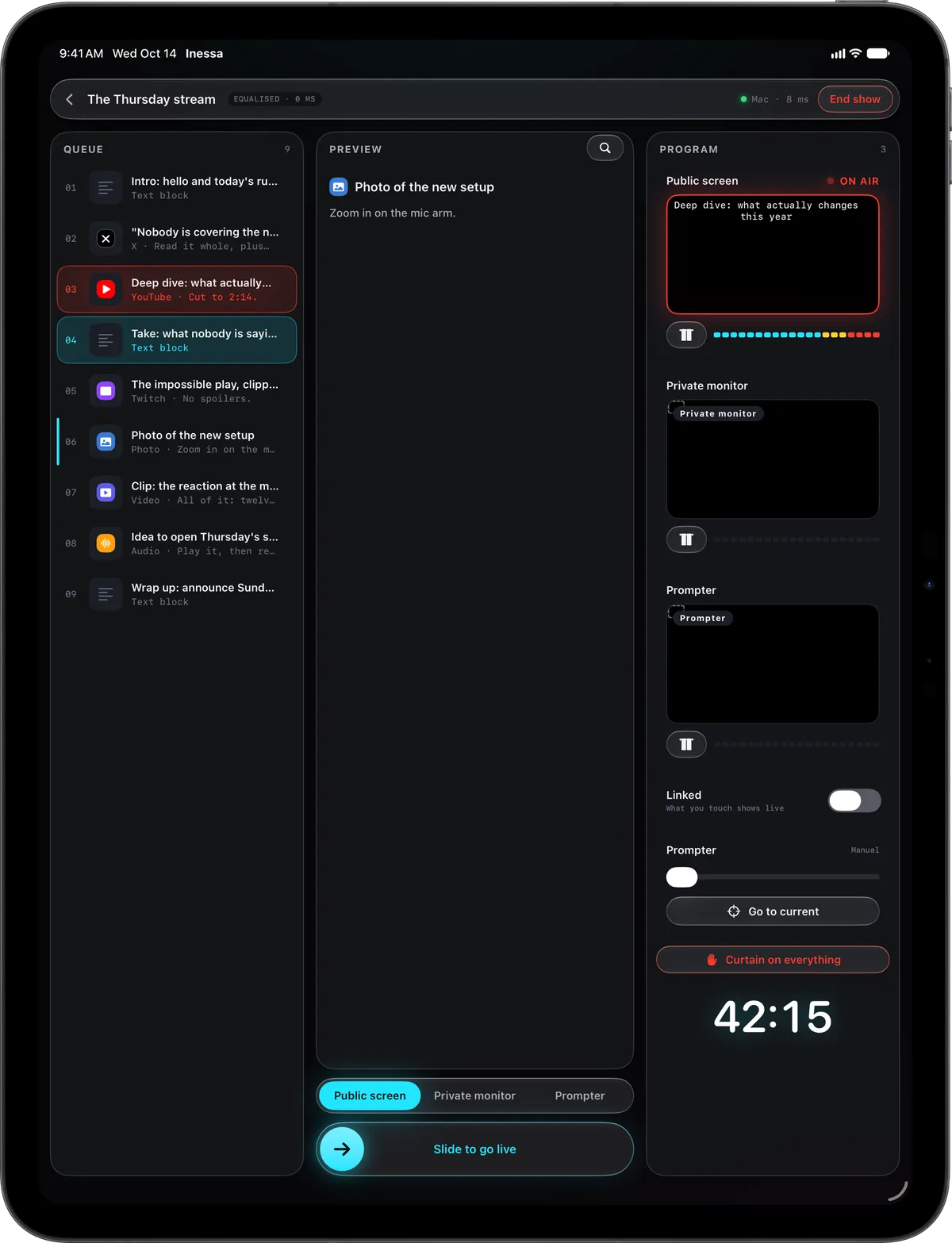
Inessa's control room on iPad: the rundown queue, the private preview and the programme with a cue on air.
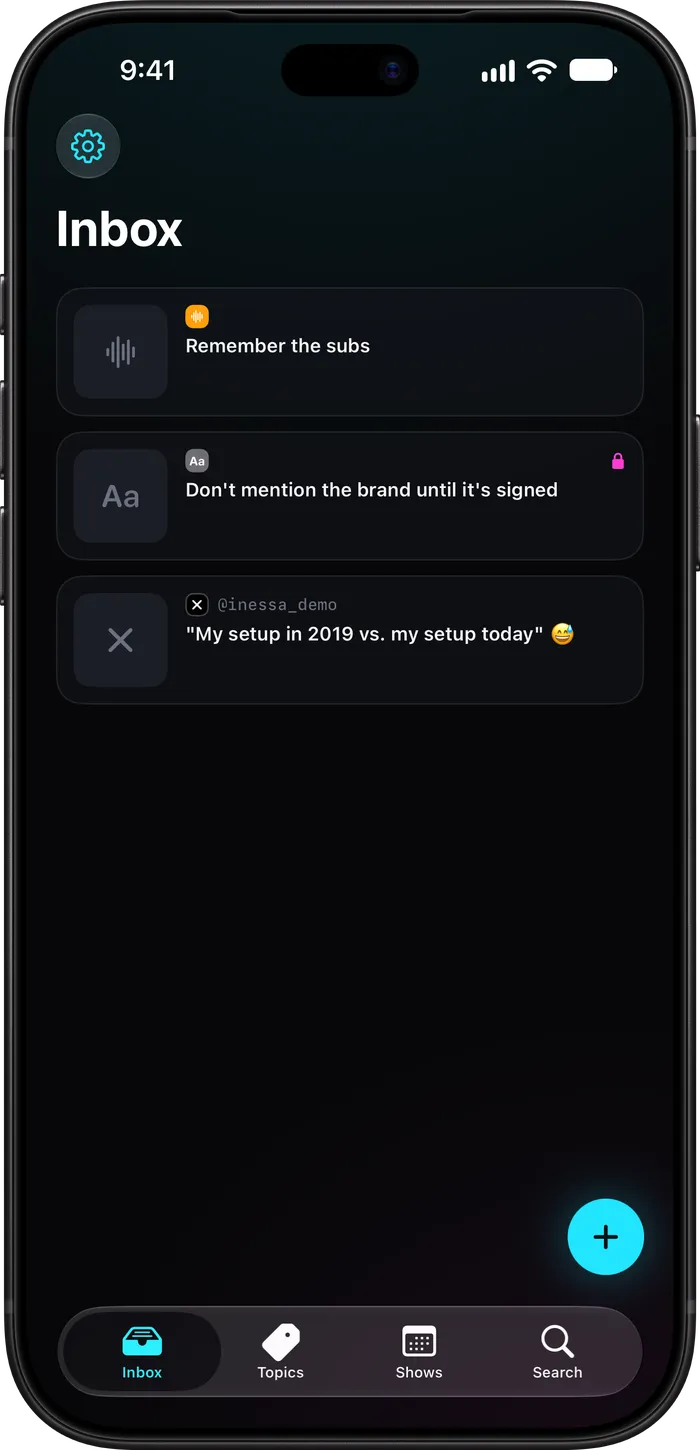
Inessa's inbox on iPhone, holding what's been saved but not sorted.
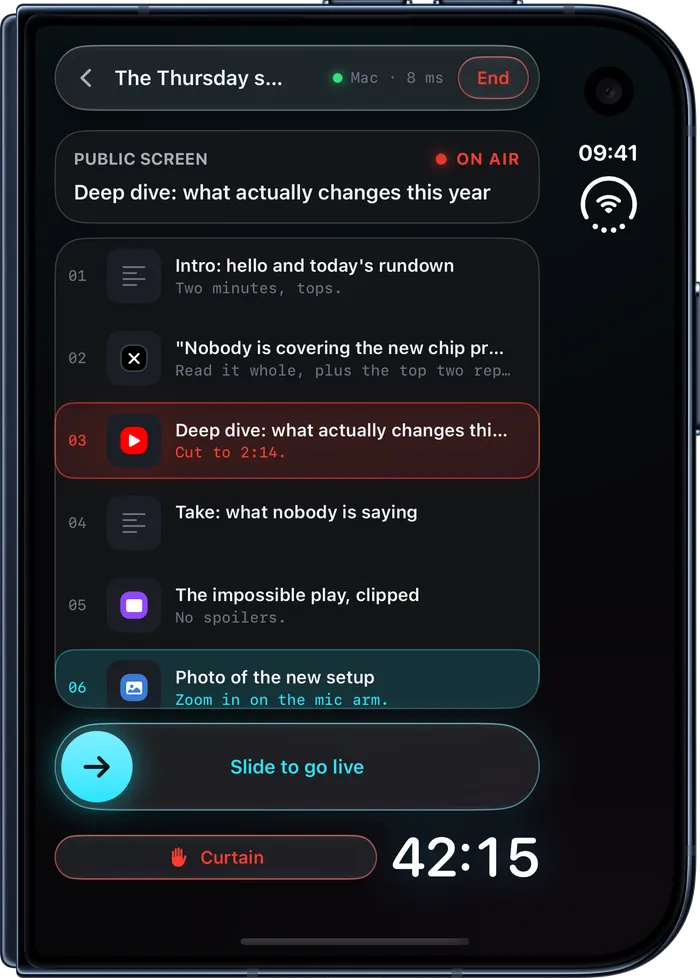
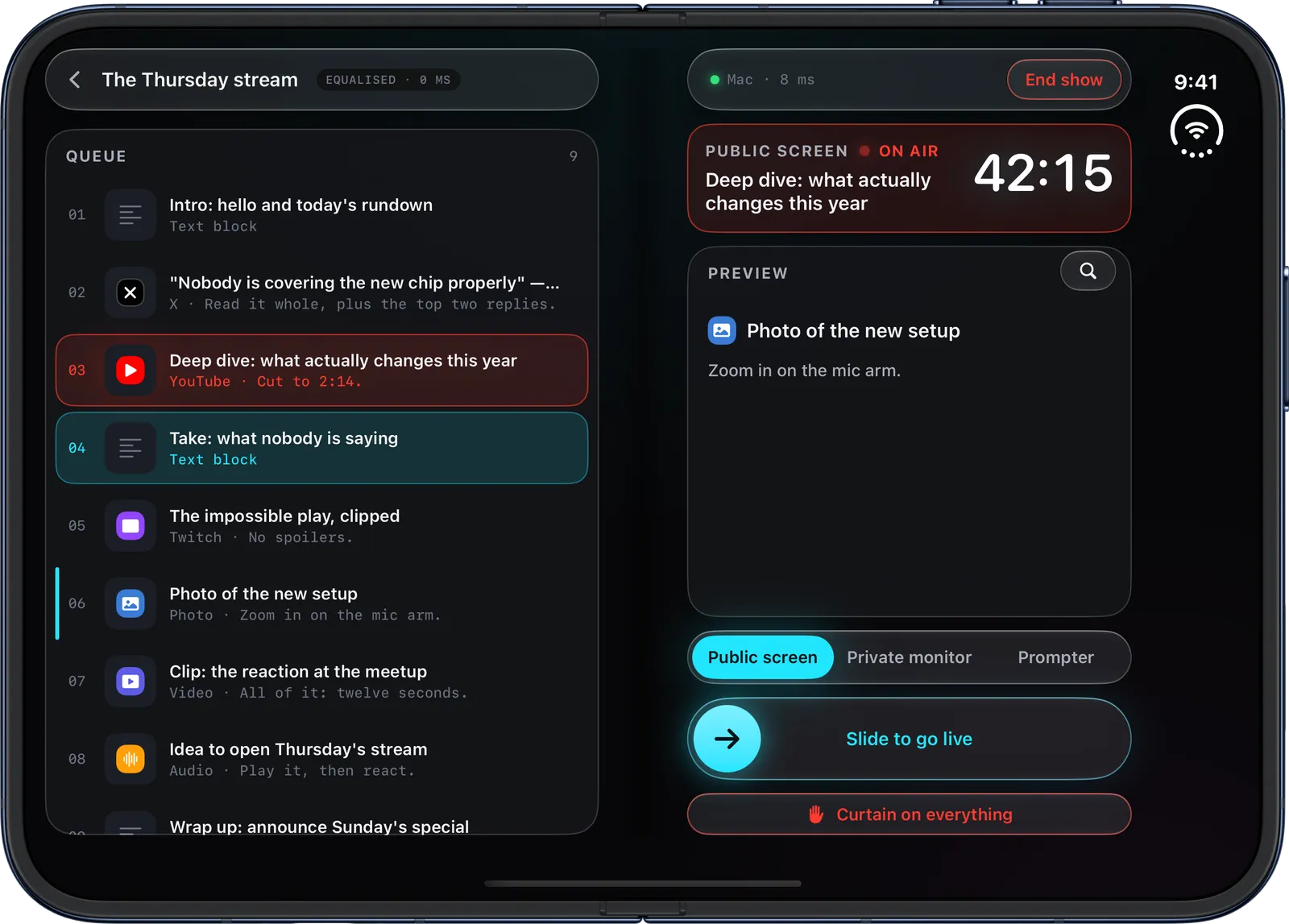
Inessa on iPhone Duo open: the rundown queue on the left, with the cue on air marked, and on the right the preview, the programme and “Slide to go live”
  • Your audience sees what you chose

    Preview and programme never share a screen, and anything marked private cannot leave through a public output.

  • Go live without rebuilding your scene

    Your OBS setup stays exactly as it is. Inessa opens windows; your software captures them like any other.

  • The material is already in there

    What you saved all week is what you drag into the rundown. No scramble half an hour before.

  • No accounts, no servers

    Nothing passes through a server of ours, because there isn't one. Your iCloud and your local network, and that's all.

  • Save from wherever you are

    Share from iPhone, iPad or Mac; a Chrome extension with its own shortcut; the action button for dictating an idea. Transcription happens on the device itself, so it works in flight mode.

  • Topics, not folders

    Tags with their own colour and emoji, shareable with whoever helps you prep. One item can live in several topics: there's no single right place to file it.

  • An actual rundown

    Draggable cues, a note per cue, text blocks for the bits you talk through without showing anything. Plus a pre-flight check that answers the only question that matters beforehand: can I start?

  • Preview and programme kept apart

    What you line up and what goes out are separate columns. Moving between them takes a swipe, and the panic button kills every output at once.

  • Outputs with a role

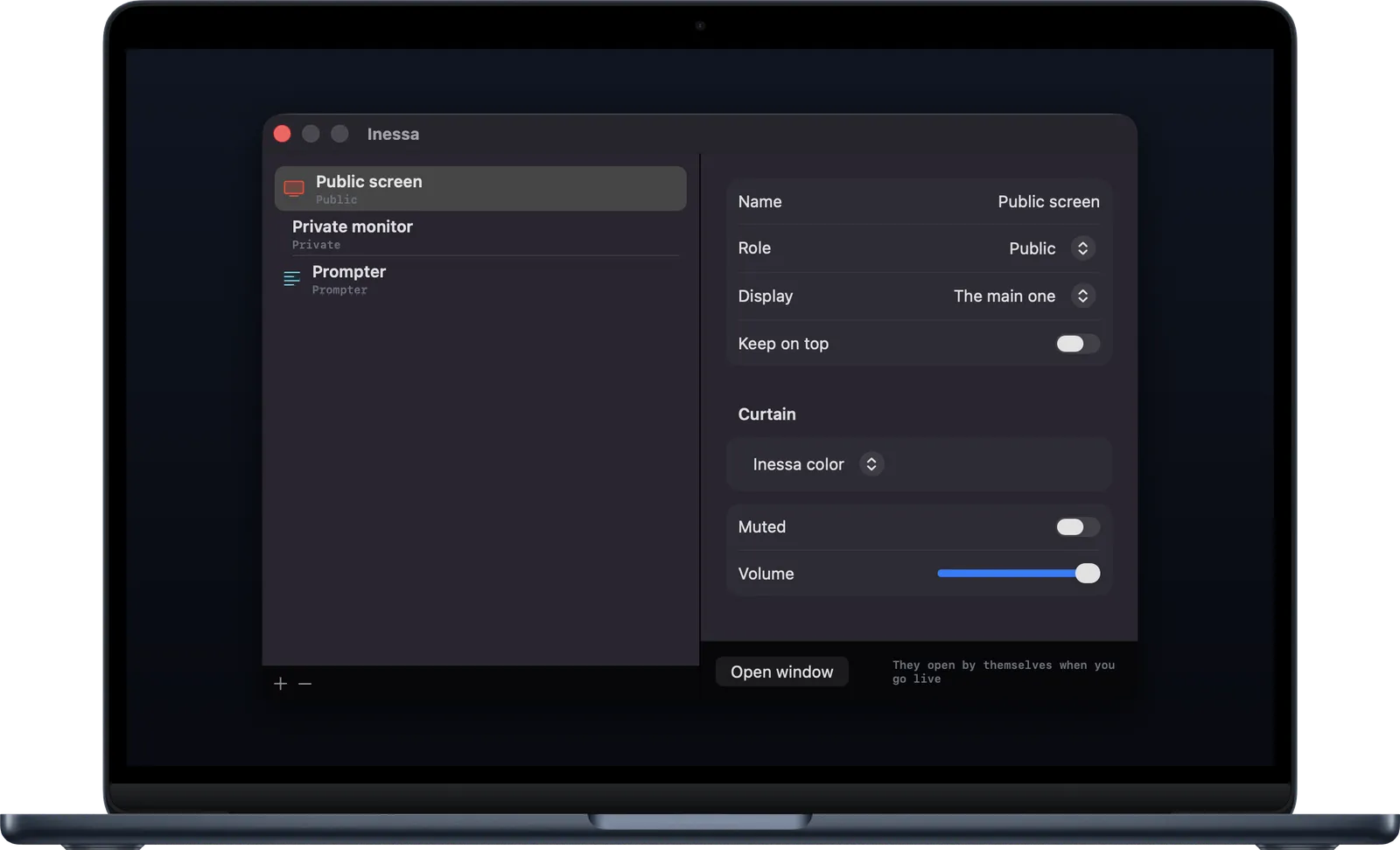
    Public screen, private monitor and prompter. A 250 ms fade between items, per-output audio mixing, and a curtain for when something has to be covered right now.

  • A PC works too

    Any browser on your network can be an output: open a tokenised address and paste it into a Browser Source. Whoever broadcasts doesn't have to be on a Mac.

  • Log and chapters

    Everything you air is logged with its timestamp. When you finish you have the show summary and chapters ready to paste into the video description.

  • No accounts. No servers.

    There's no sign-up because there's nowhere to sign up to. Your material lives on your device and syncs through your private iCloud; iPad and Mac talk over your local network, encrypted, without leaving the building.

Before you go live

You find it on Tuesday. You air it on Thursday.

Three steps sit in between, and none of them should cost you five open apps.

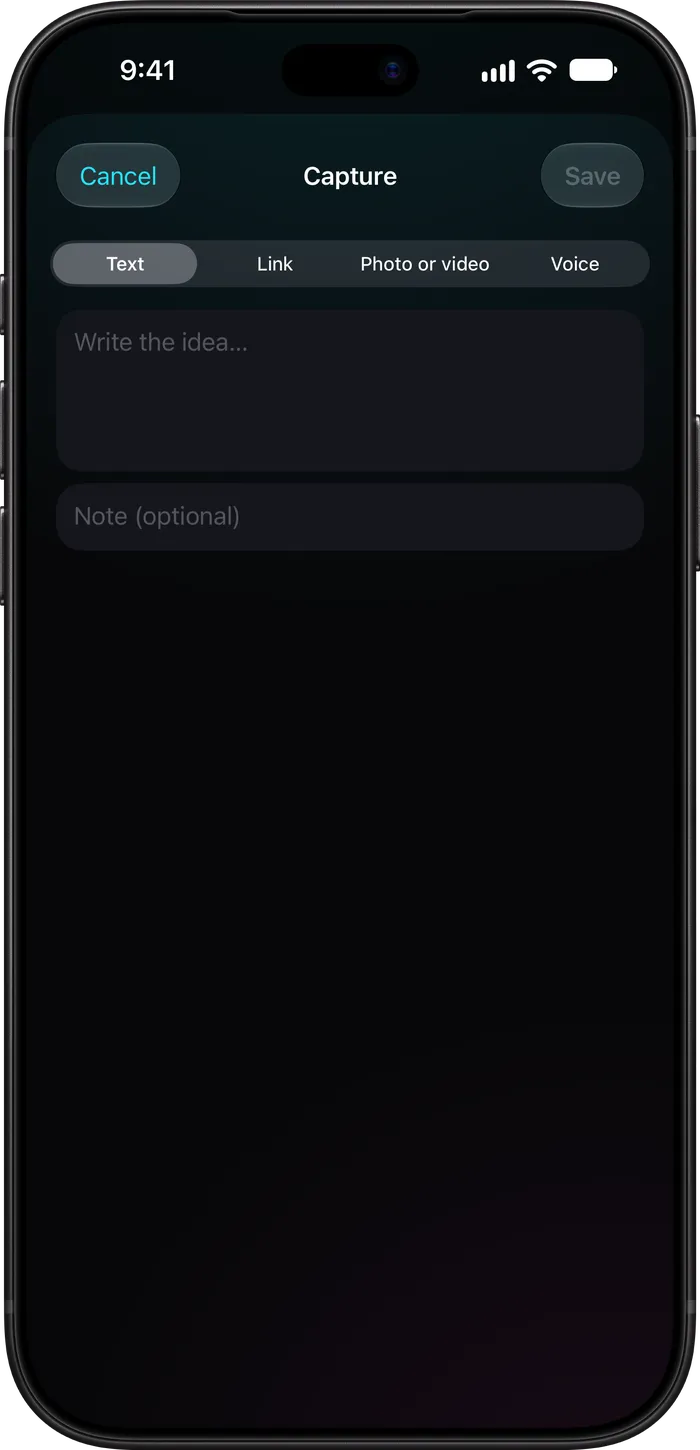
  1. Inessa's quick save open on iPhone, with the text field ready.

    01

    Save it in two seconds

    A post, a clip, a photo, an idea said out loud. From the browser, from your phone, or from the action button. It lands with its preview and its transcript, and saving never fails because the network did.

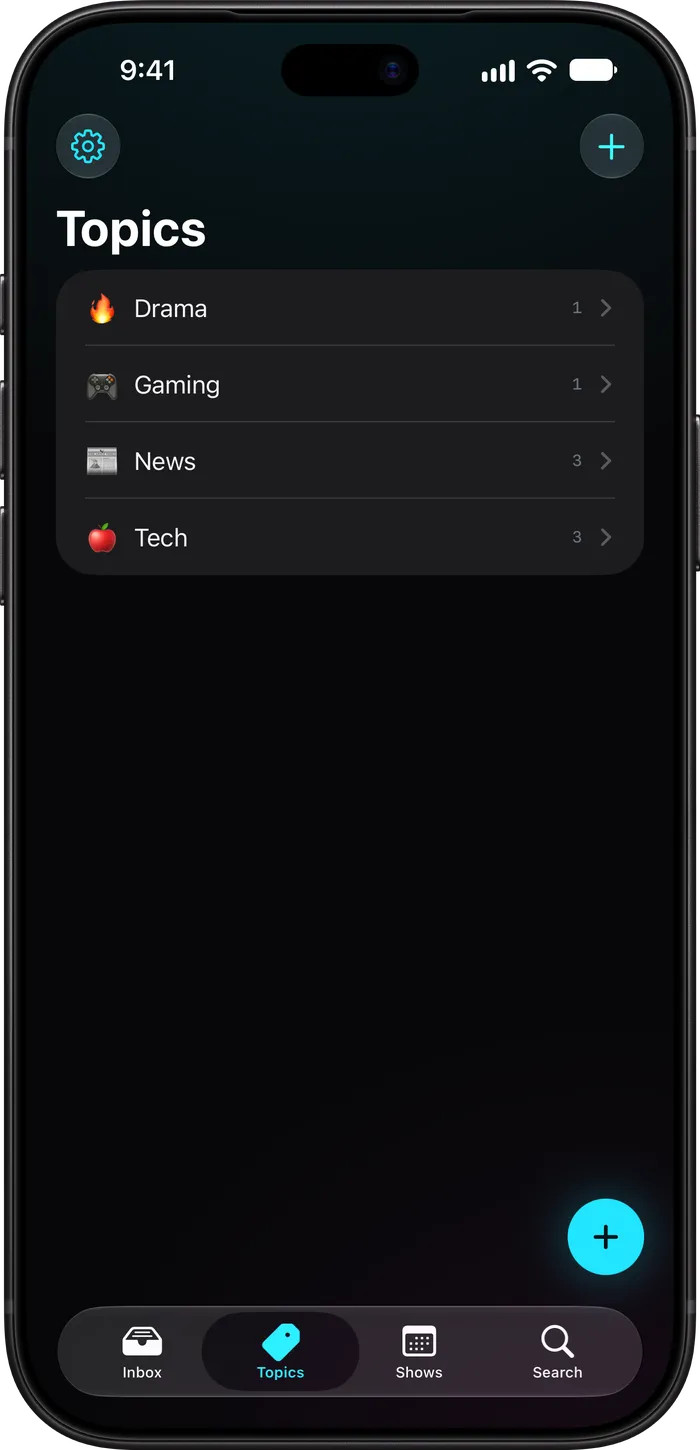
  2. Inessa's topics on iPhone, each with its own colour and emoji.

    02

    By topic, not by folder

    Everything you save drops into the inbox and moves on to its topics. The same clip can sit in both Drama and Games without being duplicated or filed away somewhere.

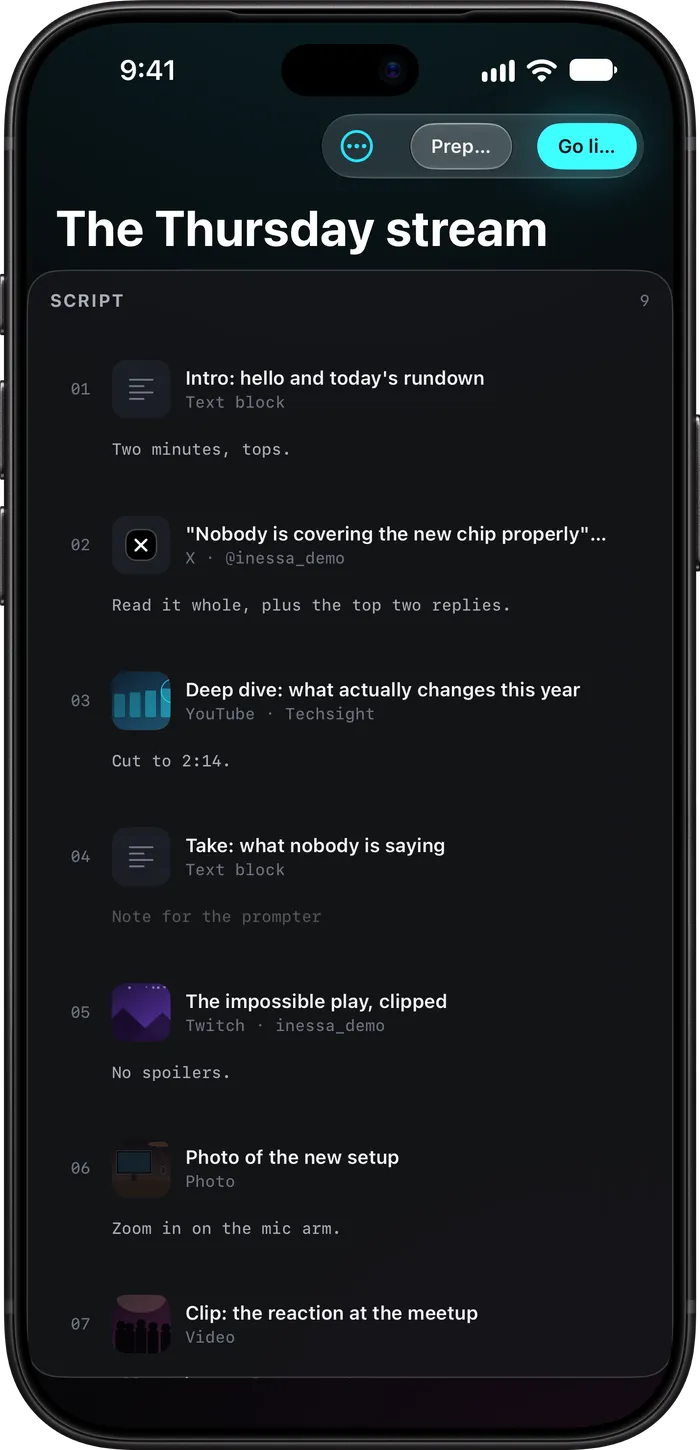
  3. A show rundown on iPhone, with its cues in order.

    03

    Your rundown, ready before you go live

    Drag in what you'll use, in the order you'll use it, with a note on what to say over each one. Once the rundown is built, the show is done except for your half of it.

On air

Three panes, and nothing slips between them.

The mistake that costs you a stream is showing the wrong screen. So what you're lining up and what's going out never share a pane: they're separate columns, and getting from one to the other takes a deliberate swipe.

Queue
The whole rundown, in order. What you've aired, what's on now and what comes next.
Preview
Yours alone. Open the link, find the right minute, frame the image. None of this reaches your audience.
Programme
What's going out of every output, each one labelled in red so you can tell at a glance what's being seen.

Slide to go live

Inessa's control room on iPad: the rundown queue, the private preview and the programme with a cue on air.

ON AIR

Two devices, two jobs

iPad commands, Mac broadcasts.

The control room sits on your lap and never touches the scene. The Mac does the broadcasting and never asks for your attention. They pair with a six-digit code over your own network, and that's it.

  • The controls aren't where the broadcast is

    Searching, trimming and choosing happen on the iPad. Nobody watches you drag windows around or open tabs, because that happens on a different device.

  • You pair them once

    Bonjour finds the Mac on your network, a six-digit code confirms it's yours, and the link is encrypted with its own pinned certificate. If it drops, it comes back on its own.

  • It works without an iPad too

    The iPhone carries a compact control room and the Mac runs on the keyboard alone: space, arrows, return. The iPad is the comfortable option, not a requirement.

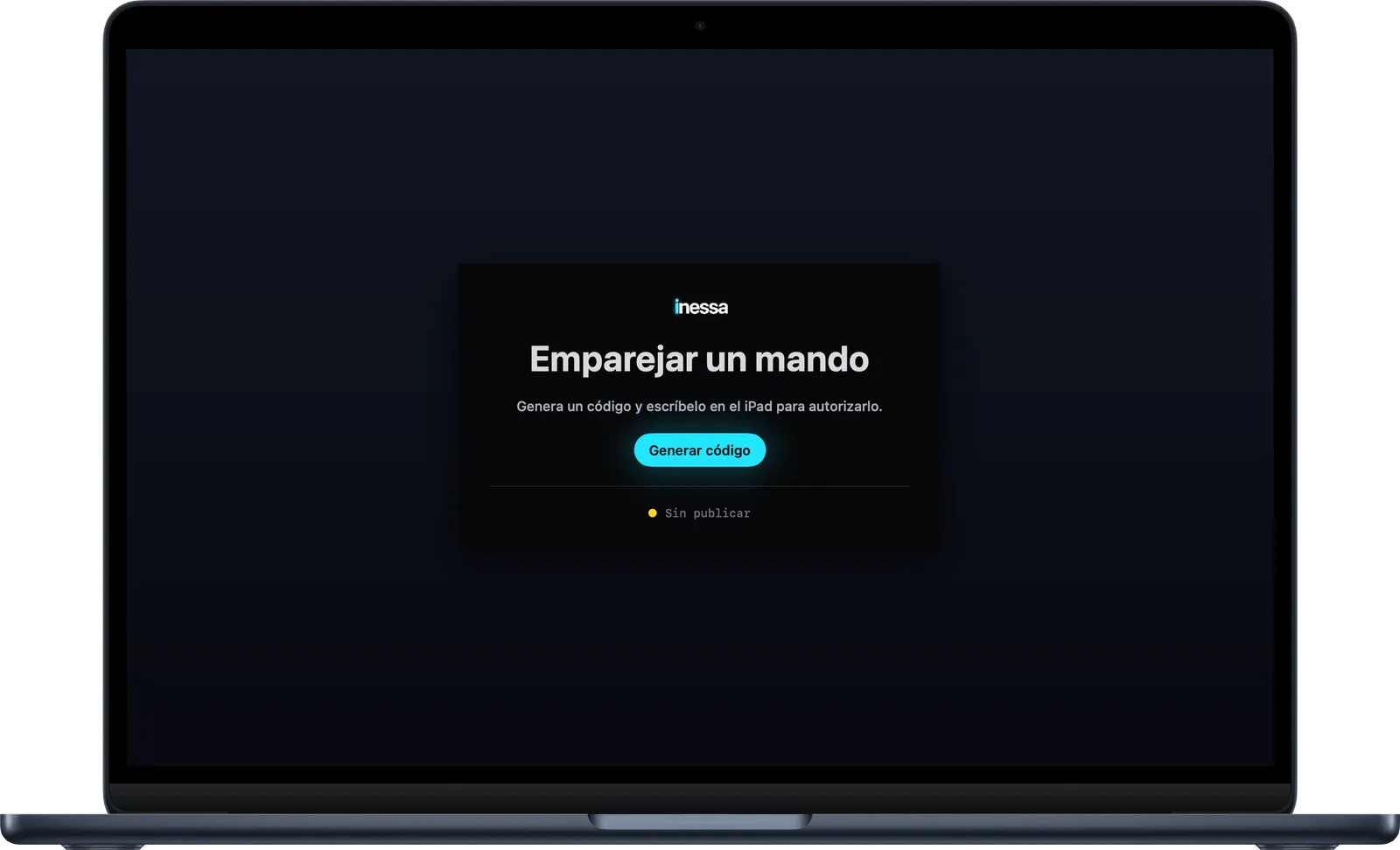
Inessa's pairing screen on Mac, with its six-digit code.
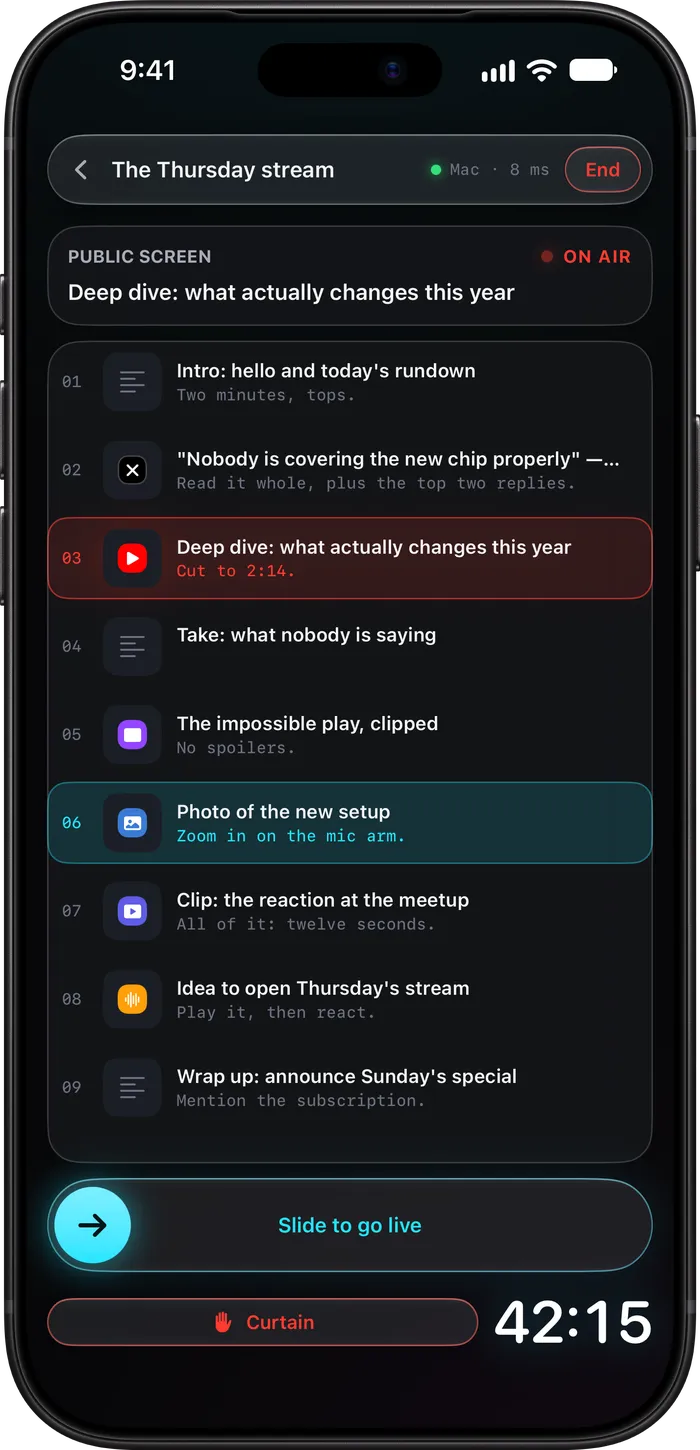
Inessa's compact control room on iPhone, live on air.

With your broadcast software

Windows OBS just has to capture.

Inessa stays out of your scene and asks for no plugin. It opens windows — the public one, your private monitor, the prompter — and OBS or Streamlabs capture them like any other.

  • Every output has a job

    The public one is what your audience sees. The private monitor is for you. The prompter is for whoever is talking. Anything marked private cannot go out of a public output, however hard you try.

  • Set up without guessing

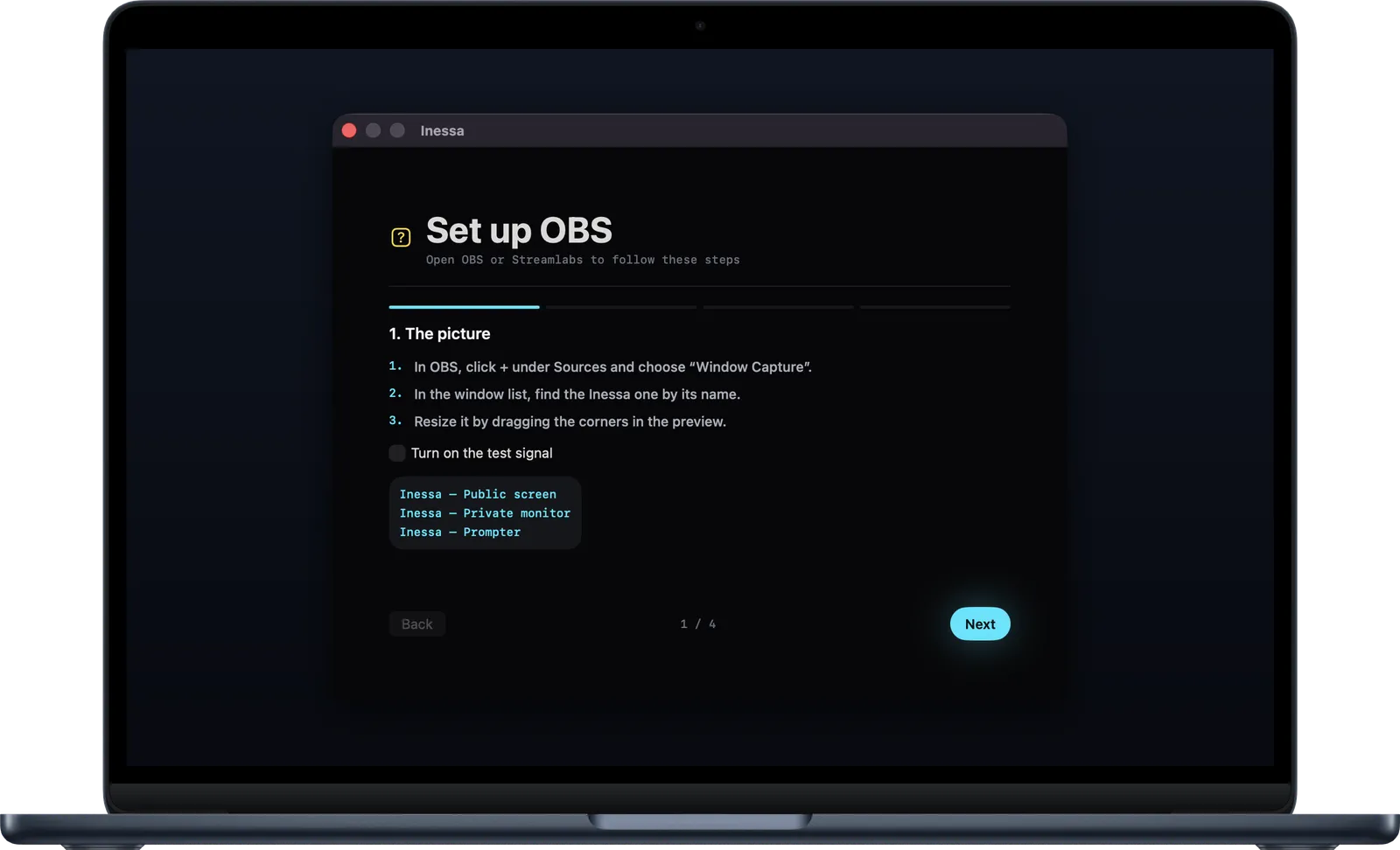
    A step-by-step assistant covers window capture and audio capture, and a test signal with a clapperboard and a 1 kHz tone tells you whether your video and audio are in sync.

  • Even when you broadcast from a PC

    The control room serves its own address on your local network: paste it into a Browser Source and that PC becomes another output. No Mac in the middle.

Inessa's output settings on Mac, each with its role and its display.
Inessa's OBS setup assistant, showing the test signal.
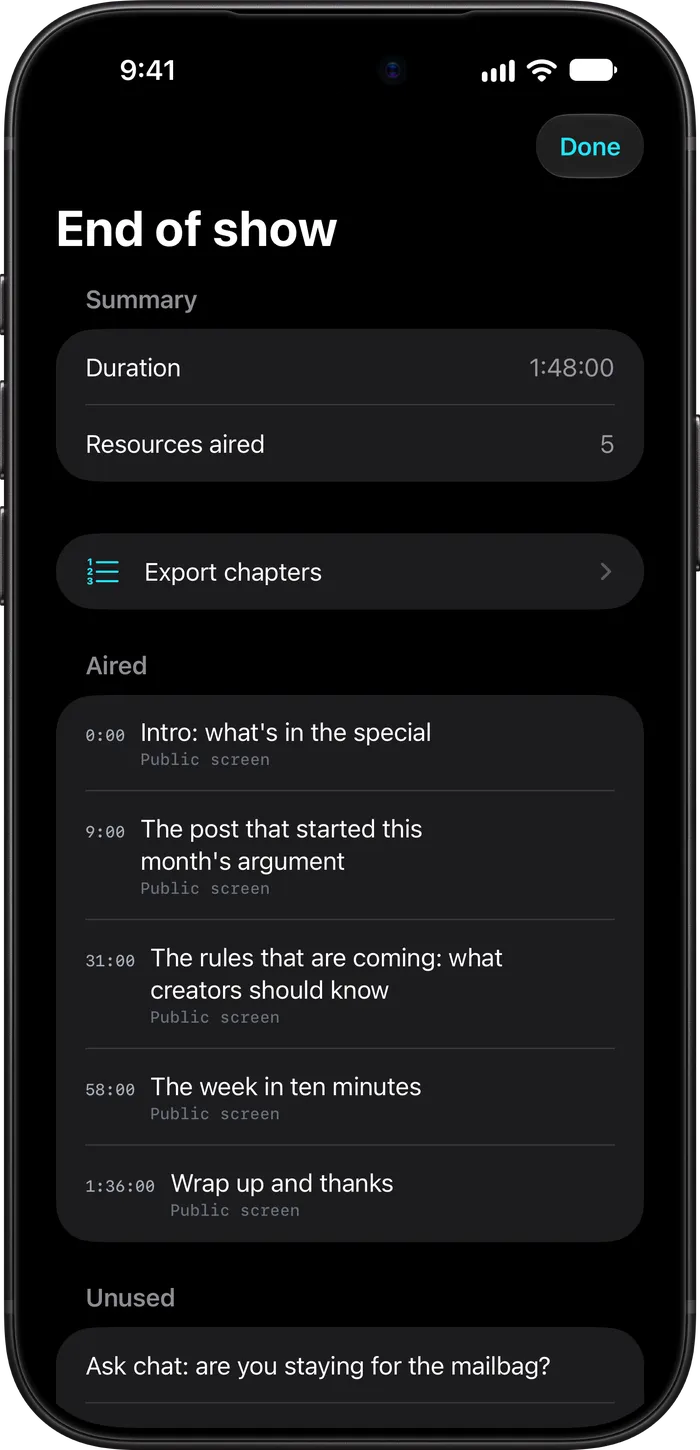
A past show's summary on iPhone, with its chapters and timings.

After the show

Every stream keeps its log.

By the time you wrap, Inessa already knows what you aired, in what order and how long each one ran. That's half your edit done.

  • Your chapters, already written

    The log exports as YouTube chapters, with an adjustable offset so the timings line up with the moment you actually hit record.

  • What you didn't use isn't lost

    When you close the show, everything left unaired moves in one go to a topic or to your next stream. Nothing drifts back to the inbox to go stale.

The devices of the broadcast

Each device does one part of the broadcast.

You save and prep on any of them, control from the iPad or the iPhone Duo, and go out from the Mac. It's the same app and the same rundown on all of them; each device changes the layout.

On the Mac you broadcast

The Mac is the studio: it opens the output windows OBS captures, and it doesn't ask for your attention while the show is live.

  • The control room, shortcuts in view

    Queue, preview and programme in the same console, with the keyboard shortcuts in sight so you don't have to hunt for them mid-show.

  • Each output with its role

    Public screen, private monitor and prompter, each with its role and display. And OBS's assistant shows you the test signal before you start.
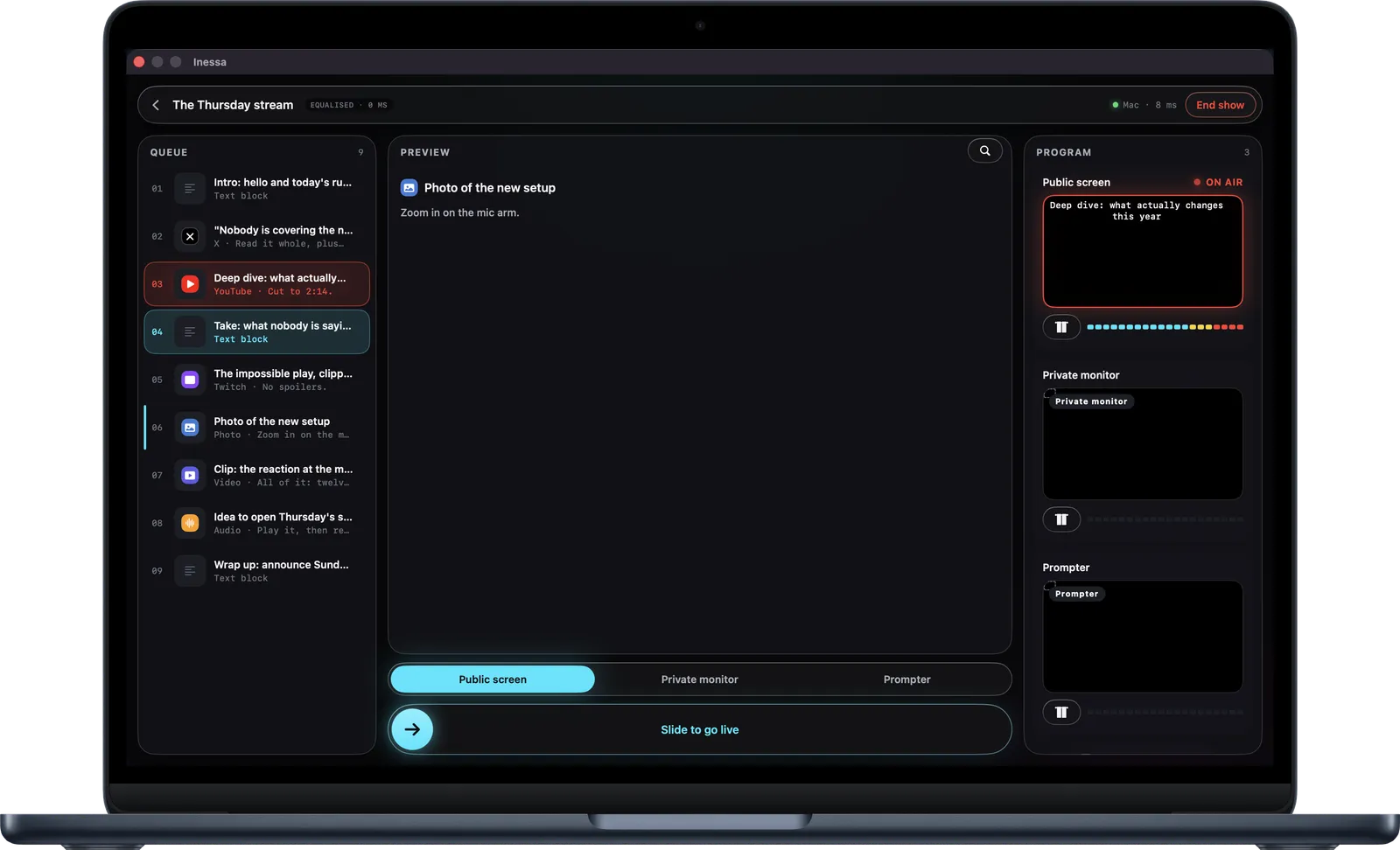
Inessa's control room on Mac, on air, with the keyboard shortcuts in view.
Inessa's output settings on Mac, each with its role and its display.
Inessa's OBS setup assistant, showing the test signal.

On the iPad you control

Searching, trimming and choosing happen on the iPad, with the whole console in view and the controller on your lap.

  • Three panes, none shared

    The rundown queue, your private preview and the programme going out each have their place. Getting from one to another takes a swipe.

  • Paired once

    Bonjour finds the Mac on your network, a six-digit code confirms it's yours, and the connection is encrypted. If it drops, it comes back on its own.

Inessa's control room on iPad: the rundown queue, the private preview and the programme with a cue on air.

On the iPhone you save and send

The iPhone saves every idea wherever you are and carries a compact controller, so you can go live without taking out the iPad.

  • Saved in two seconds, even on the street

    Share from the iPhone or dictate an idea with the action button. Transcription happens on the device itself, so it works in flight mode.

  • A controller that fits in one hand

    The compact console lets you go live from the phone. The iPad is the comfortable option, not a requirement.

Inessa's compact control room on iPhone, live on air.
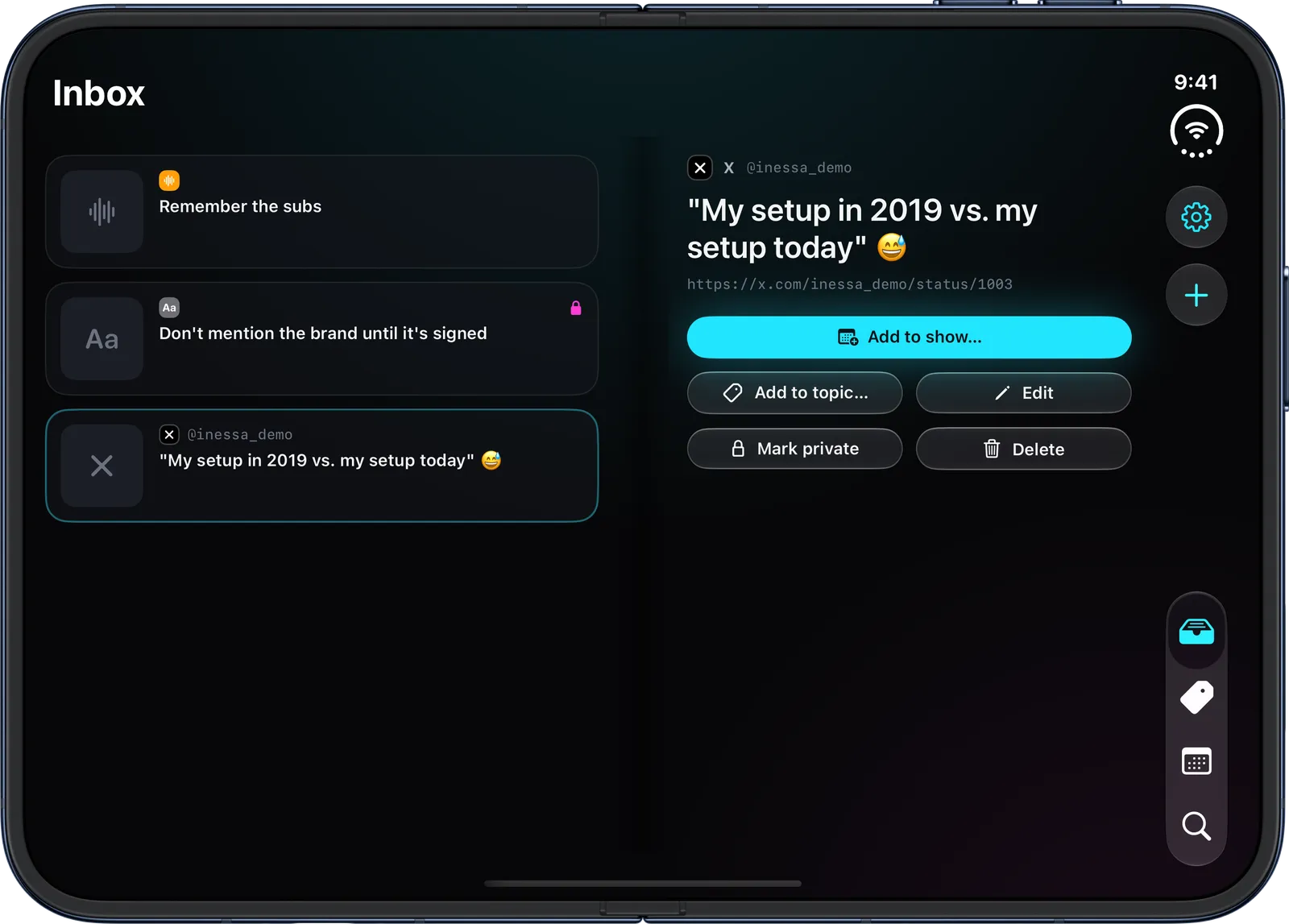
Inessa's inbox on iPhone, holding what's been saved but not sorted.
Inessa's topics on iPhone, each with its own colour and emoji.

On the iPhone Duo you pick and go live

Open, the rundown queue sits on the left and what's on air on the right. Closed, it's the iPhone controller and capture moves into the toolbar.

  • Queue on the left, air on the right

    Pick with one hand in the queue and go live with the other from the preview and programme. Resting on the desk next to the mic, it's a proper live controller.

  • Half-open: monitor on top, controls below

    In laptop posture, what's on air, the preview and the clock sit at eye level; the queue and the slide-to-go-live control are below, where your thumbs land.

Inessa on iPhone Duo open: the rundown queue on the left, with the cue on air marked, and on the right the preview, the programme and “Slide to go live”
Inessa on iPhone Duo open: the inbox on the left, with what's been saved but not sorted, and on the right the item's card with its actions
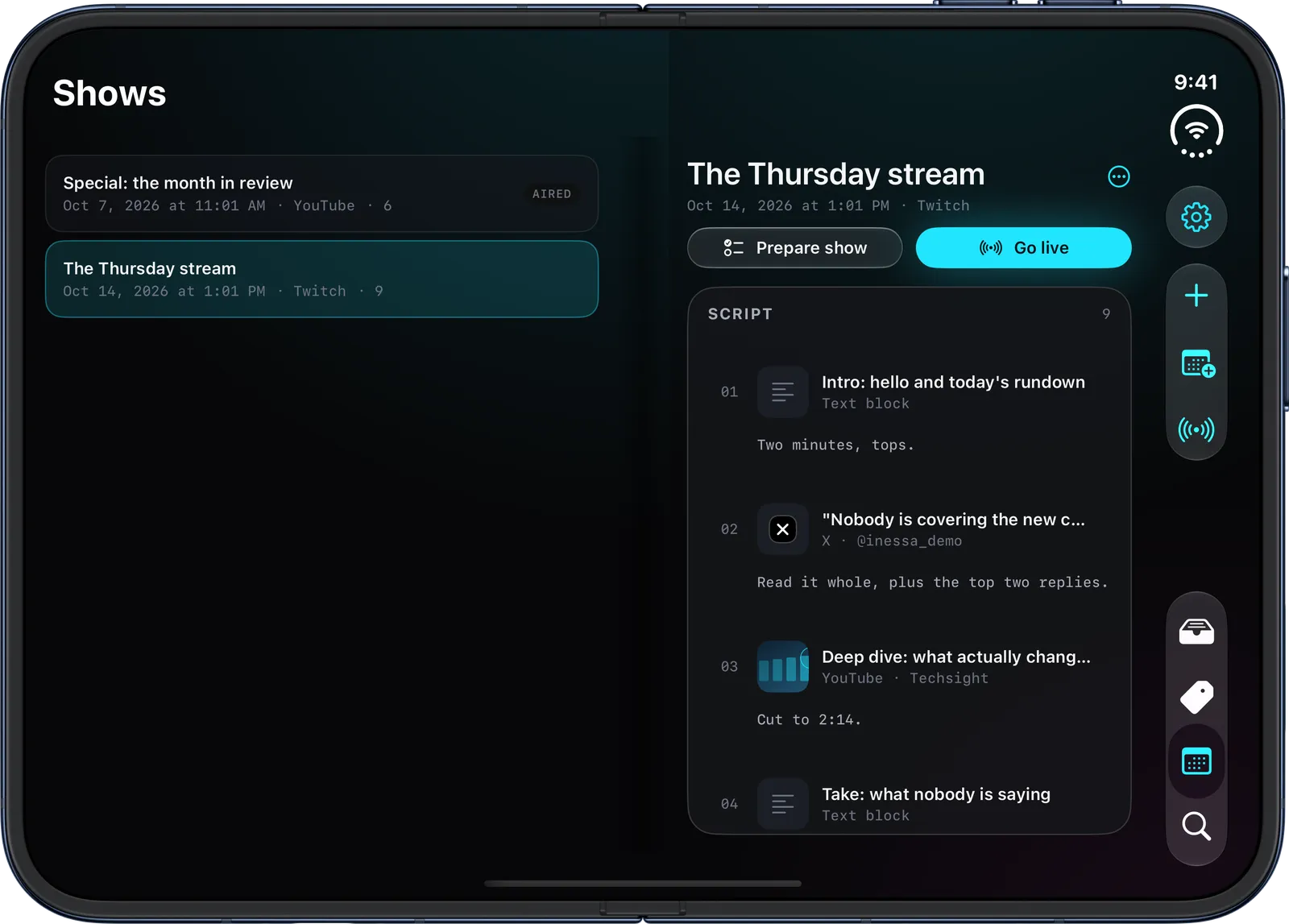
Inessa on iPhone Duo open: the list of shows on the left and, on the right, the show's rundown with its prepare and go-live buttons
Inessa on iPhone Duo closed: the controller in one column, with the cue on air marked in red and the slide-to-go-live control
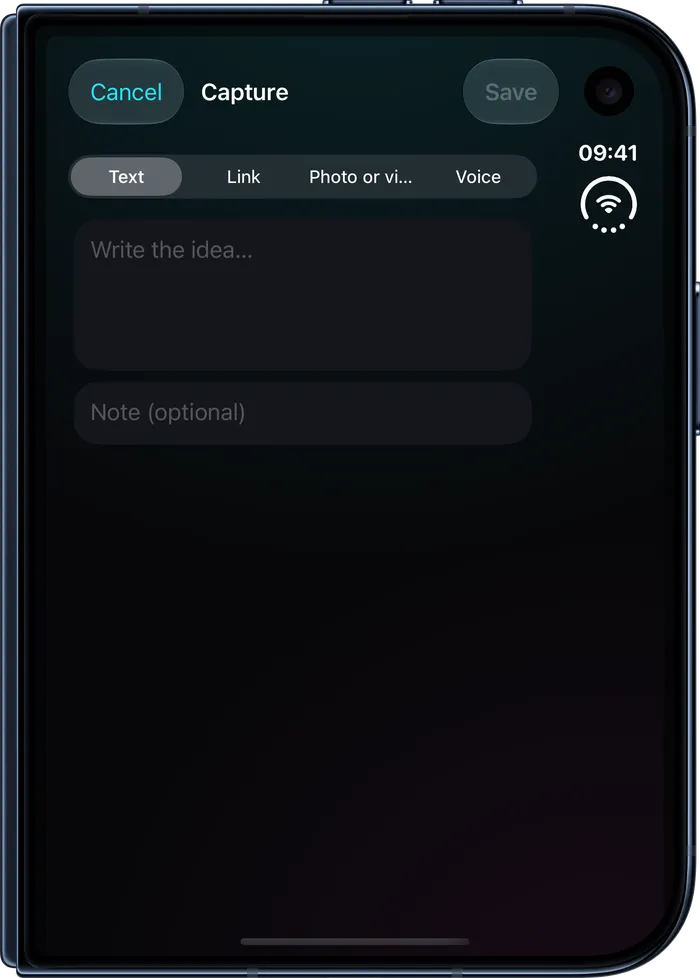
Inessa on iPhone Duo closed: quick save with its types (text, link, photo or video and voice) and the field for writing the idea
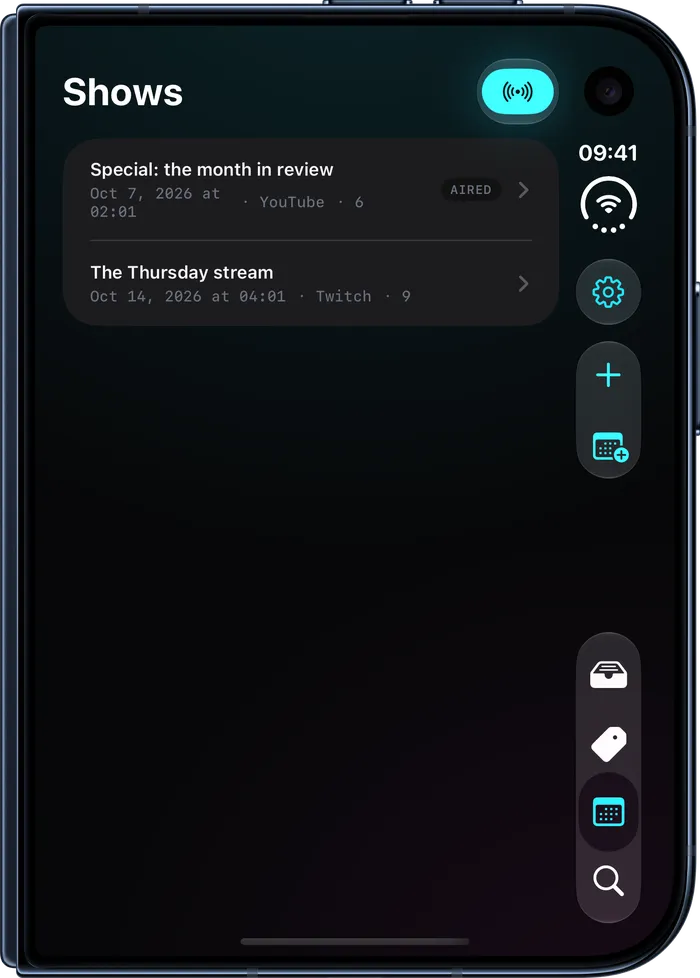
Inessa on iPhone Duo closed: the list of shows, with the monthly special and the Thursday show

Inessa isn’t for you if…

  • you go live without preparing anything: the script is half of what it does.
  • your stream is your camera and your voice, with nothing else to show on screen.
  • you have no iPad, iPhone or Mac: the controller is always an Apple device, even if you stream from a PC.

€19.99 / year

One subscription, all your devices.

  • iPhone
  • iPhone Duo
  • iPad
  • Mac

The control room on the iPad, the studio on the Mac and saving on the iPhone (iPhone Duo included) are one app and one payment.

View on the App Store

A whole year of streams before you pay.

Before you pay you get one year with the whole thing, live shows included. Equivalent price in your region.

When it expires, Inessa becomes read-only: you can still open and browse everything of yours, you just can't save new things or build new shows. You never lose access to your material.

Questions that turn up before a stream

Does it work with OBS?

Yes, and without plugins. Inessa opens ordinary windows and OBS — or Streamlabs — captures them like any other window. An assistant walks you through it the first time, and a test signal confirms your video and audio are in sync.

Do I need a Mac?

Not necessarily. If you stream from a Mac, Inessa opens the windows your broadcast software captures right there. If you stream from a PC, you don't need a Mac at all: any browser on your network can be an output through a Browser Source. Saving and building rundowns works on any of the three devices.

I broadcast from a Windows PC. Is this for me?

Yes. The control room serves an address on your local network and you paste it into an OBS Browser Source: that PC becomes another output, with its prompter and its public screen. The control room is still the iPad or the iPhone.

Do I need an iPad?

No. The iPad is the most comfortable control room, with the whole console in view. The iPhone carries a compact version, the iPhone Duo open shows the queue and the air side by side, and the Mac runs on keyboard shortcuts.

What happens when the trial year ends?

Inessa goes read-only. You can still get in, browse your topics and open the logs of your past shows; what you can't do is save new things or build new ones. Your material is left alone.

Where is everything I save?

On your device, synced through your private iCloud container. There is no Inessa server: it doesn't exist, so there's nothing to leak and nobody to sell it to. iPad and Mac talk over your local network, encrypted and paired with a code.

Where do I get it?

On the App Store. It’s free to download, with one year to use it in full before you pay anything.

What languages is the app in?

Spanish and English. This site is in four languages, but the app is in two, and we would rather tell you before you install it than after.

Inessa is on the App Store

Free to download, with one year to use it in full before you pay anything.

View on the App Store

A question first? contact@falkir.es